---
title: How to update the PO number on my invoice
description: Step-by-step guide to adding or updating the purchase order (PO) number on your Calira subscription invoices for accurate billing records.
---
[Skip to content](https://help.calira.co/how-to-update-the-po-number-on-my-invoice#main-content)
[](https://calira.co/)
Open main navigation
Close main navigation
- [Contact us](https://calira.co/contact)
[Contact us](https://calira.co/contact)
How can we help you?
- There are no suggestions because the search field is empty.
1. [Calira help centre | Guides and support](https://help.calira.co/?hsLang=en)
2. [Subscriptions & Billing](https://help.calira.co/subscriptions-billing?hsLang=en)
# How to update the PO number on my invoice
## Add or change the purchase order (PO) number on your account.
To change the PO number on file for your lab so that it will be used for future invoices (e.g renewal of your subscription or if you upgrade your plan), the lab admin (or in the case of enterprise subscription holders the organisation admin) must follow the below steps:
For a single lab subscription:
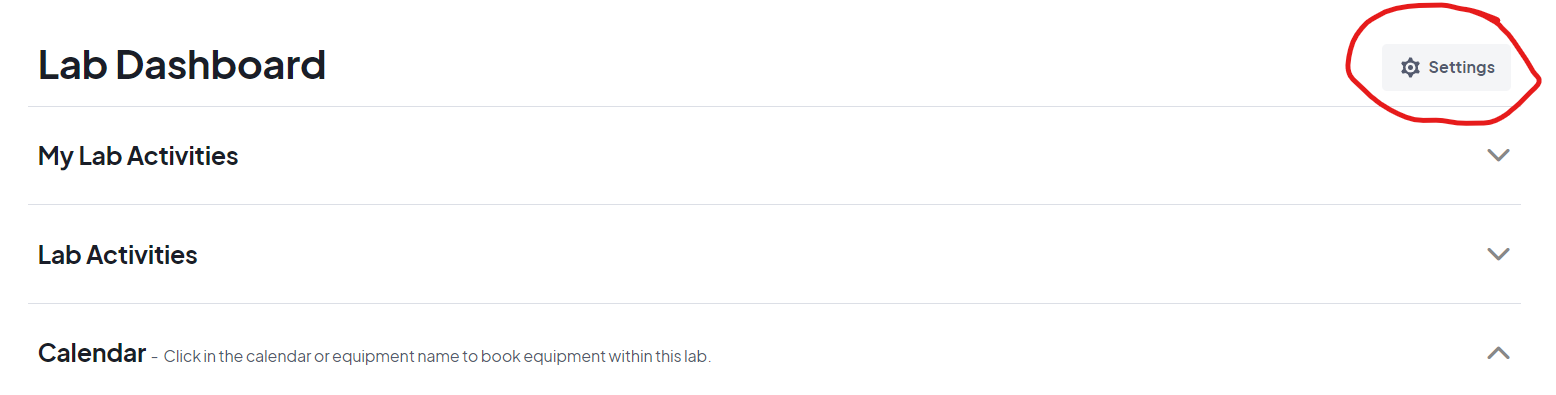
- Select the lab settings button, located on the right hand side of the lab dashboard page.
[](https://clustermarket-81c19fb5e183.intercom-attachments-7.com/i/o/995983275/572d3f5c0374c7c84855ed66/hp2hE1SYPa5wB038r_b7WP65NYQPXhyNoe1Pc-zAaIvdJeG06Aq1kI5i5jYF_0j7Yfqoq1Cv3kt-AcvCPfZ_rHBZTSDy6d__micsBi0-87N_tjwgXY5ynz0CgIEXi5NhywWVDZ-MIRaahR9qWwT3C9c?expires=1741083300&signature=75feeeecf4f33f5ee6f6b56a6d22220d996f283376075ed0e6cb8d6cec9c390c&req=fSkiH8F9n4ZaFb4f3HP0gE8fsSKn37Ou8H73cZTSgDsGwZZJbBN4UGaNIx8W%0A4J8%3D%0A)
Select the lab settings button, located on the right hand side of the lab dashboard page.
[](https://clustermarket-81c19fb5e183.intercom-attachments-7.com/i/o/995983275/572d3f5c0374c7c84855ed66/hp2hE1SYPa5wB038r_b7WP65NYQPXhyNoe1Pc-zAaIvdJeG06Aq1kI5i5jYF_0j7Yfqoq1Cv3kt-AcvCPfZ_rHBZTSDy6d__micsBi0-87N_tjwgXY5ynz0CgIEXi5NhywWVDZ-MIRaahR9qWwT3C9c?expires=1741083300&signature=75feeeecf4f33f5ee6f6b56a6d22220d996f283376075ed0e6cb8d6cec9c390c&req=fSkiH8F9n4ZaFb4f3HP0gE8fsSKn37Ou8H73cZTSgDsGwZZJbBN4UGaNIx8W%0A4J8%3D%0A)
For Enterprise subscription:
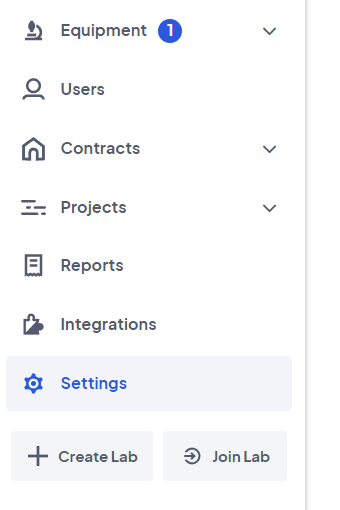
- The settings for the subscription are located at the bottom of the left hand menu for the organisation admin.
[](https://clustermarket-81c19fb5e183.intercom-attachments-7.com/i/o/995983298/0d35fb708f710020213546df/QLiaSGzDeHgNjEuMZLm36ThvGhICc5vS6Ttt45W5dqOEcrrOJg-x0cES4WJy19Twe5YcSVqYOchW-HDg4R5LMYKg3cpN5Gerve7X0HeaIIzJlqhqJFrUMImTKArHdifYLOpwgxw145nzOUMCDqq3juE?expires=1741083300&signature=61c7bc433e5ca36fb1d68d4b11c7eb1519290a1adfb8638e19341bd88261f506&req=fSkiH8F9n4hXFb4f3HP0gHW83Y%2FkkRb%2FEWADUpt%2FcciitZDvPpdP5SVGzCsy%0AXcY%3D%0A)
The settings for the subscription are located at the bottom of the left hand menu for the organisation admin.
[](https://clustermarket-81c19fb5e183.intercom-attachments-7.com/i/o/995983298/0d35fb708f710020213546df/QLiaSGzDeHgNjEuMZLm36ThvGhICc5vS6Ttt45W5dqOEcrrOJg-x0cES4WJy19Twe5YcSVqYOchW-HDg4R5LMYKg3cpN5Gerve7X0HeaIIzJlqhqJFrUMImTKArHdifYLOpwgxw145nzOUMCDqq3juE?expires=1741083300&signature=61c7bc433e5ca36fb1d68d4b11c7eb1519290a1adfb8638e19341bd88261f506&req=fSkiH8F9n4hXFb4f3HP0gHW83Y%2FkkRb%2FEWADUpt%2FcciitZDvPpdP5SVGzCsy%0AXcY%3D%0A)
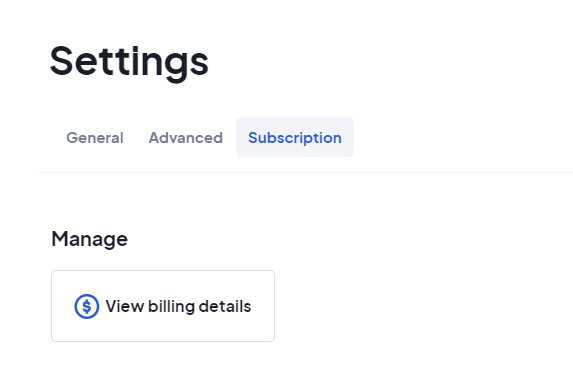
- In the lab settings, select the Subscription tab and click View Billing Details
[](https://clustermarket-81c19fb5e183.intercom-attachments-7.com/i/o/995983290/dd787e50f78145c55a65cfea/uYETLvWwHDYl-4vKV1X4FliTcE2Y99bL7MMDEpY9YUBs_NKr1f9ueG4JTs3QjzBN1yG21qAhhPerd8WaBZ2xWgTLgQAtnv6d-NXqyALCljfHtXz83Vp3kmfyj4z7EUYH8XYwqjesk5ORRdU_dVq_Z00?expires=1741083300&signature=bb72a517b2d904186c1255d1f1e58c6fd9760f7ba581746467a007825343e6fa&req=fSkiH8F9n4hfFb4f3HP0gK8em9baal8HIQPnezMdBip1toaaUgW42mS%2B4D1h%0AqS0%3D%0A)
- This will open in a new tab the Calira billing portal. Click on the lab subscription at the top of the menu and input a PO number into the box.
In the lab settings, select the Subscription tab and click View Billing Details
[](https://clustermarket-81c19fb5e183.intercom-attachments-7.com/i/o/995983290/dd787e50f78145c55a65cfea/uYETLvWwHDYl-4vKV1X4FliTcE2Y99bL7MMDEpY9YUBs_NKr1f9ueG4JTs3QjzBN1yG21qAhhPerd8WaBZ2xWgTLgQAtnv6d-NXqyALCljfHtXz83Vp3kmfyj4z7EUYH8XYwqjesk5ORRdU_dVq_Z00?expires=1741083300&signature=bb72a517b2d904186c1255d1f1e58c6fd9760f7ba581746467a007825343e6fa&req=fSkiH8F9n4hfFb4f3HP0gK8em9baal8HIQPnezMdBip1toaaUgW42mS%2B4D1h%0AqS0%3D%0A)
This will open in a new tab the Calira billing portal. Click on the lab subscription at the top of the menu and input a PO number into the box.
If you require any additional assistance, please reach out to [info@calira.co](mailto:info@calira.co) and we will be happy to help you.
- [About Calira](https://help.calira.co/about-calira?hsLang=en)
- [Account](https://help.calira.co/account?hsLang=en)
- [Announcements](https://help.calira.co/announcements?hsLang=en)
- [Bookings](https://help.calira.co/bookings?hsLang=en)
- [Custom Forms](https://help.calira.co/custom-forms?hsLang=en)
- [Data and Safety](https://help.calira.co/data-and-safety?hsLang=en)
- [Equipment](https://help.calira.co/equipment?hsLang=en#main-content)
- [Creating Equipment](https://help.calira.co/equipment?hsLang=en#creating-equipment)
- [Charging For Equipment](https://help.calira.co/equipment?hsLang=en#charging-for-equipment)
- [Equipment Booking Rules](https://help.calira.co/equipment?hsLang=en#equipment-booking-rules)
- [Integrations](https://help.calira.co/integrations?hsLang=en#main-content)
- [Calira API](https://help.calira.co/integrations?hsLang=en#calira-api)
- [Benchling Integration](https://help.calira.co/integrations?hsLang=en#benchling-integration)
- [External Calendars](https://help.calira.co/integrations?hsLang=en#external-calendars)
- [LabTrack Integration](https://help.calira.co/integrations?hsLang=en#labtrack-integration)
- [Single Sign-On (SSO)](https://help.calira.co/integrations?hsLang=en#single-sign-on-sso)
- [Asset Monitoring Integrations](https://help.calira.co/integrations?hsLang=en#asset-monitoring-integrations)
- [Electronic Lab Notebooks (ELN's)](https://help.calira.co/integrations?hsLang=en#electronic-lab-notebooks-elns)
- [Maintenance](https://help.calira.co/maintenance?hsLang=en)
- [Projects](https://help.calira.co/projects?hsLang=en)
- [Reports](https://help.calira.co/reports?hsLang=en)
- [Subscriptions & Billing](https://help.calira.co/subscriptions-billing?hsLang=en)
- [System Information](https://help.calira.co/system-information?hsLang=en)
- [Troubleshooting](https://help.calira.co/troubleshooting?hsLang=en)
- [Users](https://help.calira.co/users?hsLang=en#main-content)
- [Inviting New Users](https://help.calira.co/users?hsLang=en#inviting-new-users)
- [User Training](https://help.calira.co/users?hsLang=en#user-training)
- [Assigning Equipment to a User](https://help.calira.co/users?hsLang=en#assigning-equipment-to-a-user)
- [Workflows](https://help.calira.co/workflows?hsLang=en)
[.svg "Chill listening crop-3")](https://calira.co/)
Clustermarket Ltd (trading as Calira) is a company registered in England and Wales (No.09485659). Registered office: 34 Lime Street, London, EC3M 7AT, United Kingdom.
[mailto:support@calira.co](mailto:support@calira.co)
Copyright © 2026, Calira
```json
{
"@context" : "https://schema.org",
"@id" : "https://calira.co/#organization",
"@type" : "Organization",
"logo" : "https://cdn.prod.website-files.com/68824ff75537b66dd8766992/69f9f2bbb669ebffba10349e_calira-logo.png",
"name" : "Calira",
"sameAs" : [ "https://www.linkedin.com/company/calira/", "https://www.crunchbase.com/organization/calira" ],
"url" : "https://calira.co"
}
```
```json
{
"@context" : "https://schema.org",
"@id" : "https://help.calira.co/#website",
"@type" : "WebSite",
"inLanguage" : "en-GB",
"name" : "Calira help centre",
"publisher" : {
"@id" : "https://calira.co/#organization"
},
"url" : "https://help.calira.co"
}
```
```json
{
"@context" : "https://schema.org",
"@type" : "TechArticle",
"about" : {
"@id" : "https://calira.co/#software"
},
"author" : {
"@id" : "https://calira.co/#organization"
},
"dateModified" : "2026-04-30T09:44:08+00:00",
"datePublished" : "",
"description" : "Step-by-step guide to adding or updating the purchase order (PO) number on your Calira subscription invoices for accurate billing records.",
"headline" : "How to update the PO number on my invoice",
"inLanguage" : "en-GB",
"isPartOf" : {
"@id" : "https://help.calira.co/#website"
},
"mainEntityOfPage" : "https://help.calira.co/how-to-update-the-po-number-on-my-invoice",
"publisher" : {
"@id" : "https://calira.co/#organization"
},
"url" : "https://help.calira.co/how-to-update-the-po-number-on-my-invoice"
}
```